Appoint someone to a role
Some decisions don't approve a motion or a budget — they appoint someone to a seat: a committee member, a board chair, a treasurer. Decidiq has a dedicated appointment decision type for this, and once that decision is enacted it automatically creates the resulting membership for you.
Goal
By the end you will have created an appointment decision, nominated one or more candidates for one or more posts, carried it through to enacted, and confirmed the membership Decidiq created from it.
Prerequisites
- The right to create decisions for the governance body the appointment is for.
- The governance body — and, if the appointment targets a formal seat, the post(s) — must already exist (see Configure a governance workflow).
- If you're nominating an existing person rather than an outside candidate, they should already be registered in Decidiq.
Steps
-
Open Decisions, click Add Decision, and set Decision type to Appointment. The form reveals the appointment fields.
-
Fill in the target body (the governance body the appointment is for) and, if it's for a specific committee or board seat rather than general membership, one or more target posts. Set the target role — chair, vice-chair, secretary, treasurer, member, observer, or guest.
-
Add one or more candidates. Each candidate is either an existing person in Decidiq, or, for someone not yet registered, a free-text external name — useful when a candidate is still being externally sourced and hasn't been added as a Person yet. Record the nominating party (a political group, another body, or a person) if the body tracks who put the candidate forward.
-
If you listed more than one target post, list exactly the same number of candidates — Decidiq pairs them up in order (first candidate to first post, second to second, and so on). One target post, no target posts, or a single candidate never needs this pairing, so those cases are always accepted.
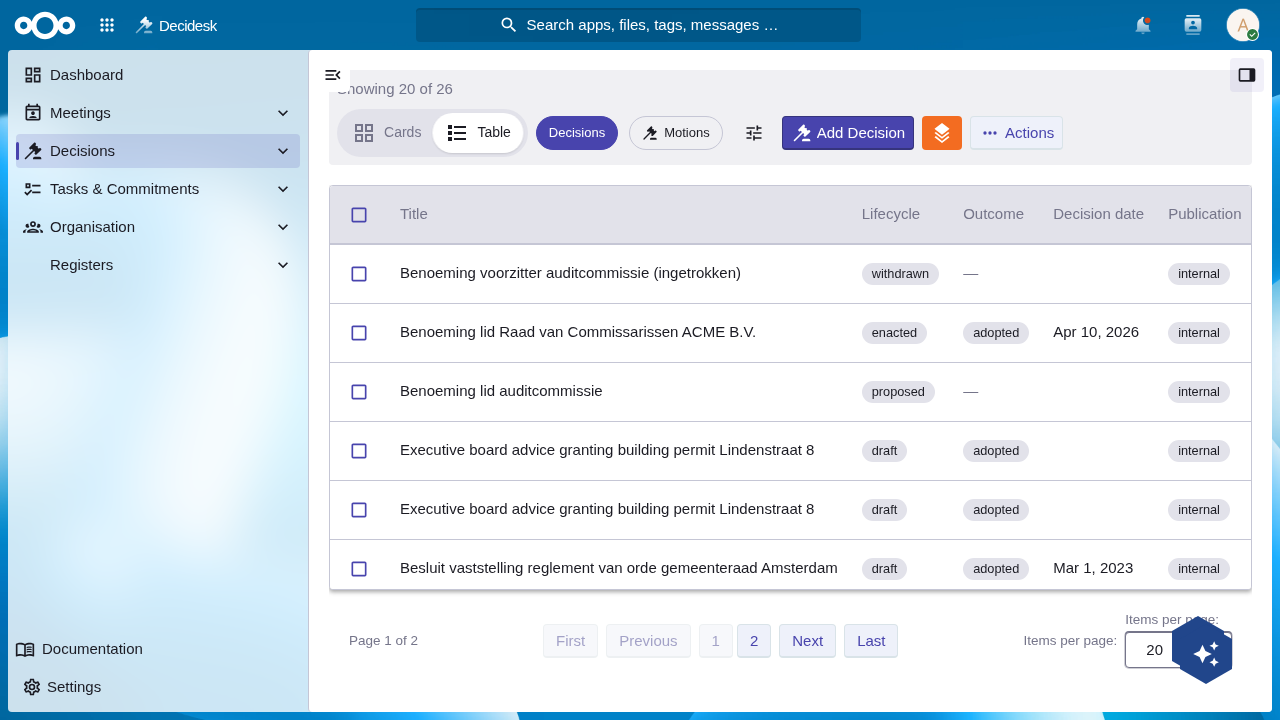
The Decisions list shows appointment decisions alongside every other type — outcome, lifecycle, and publication state at a glance:
-
Carry the decision through the normal lifecycle — propose, deliberate, open a vote if the body requires one, decide, then enact — the same as any other decision (see Run a vote).
-
Once the decision reaches enacted with an adopted outcome, Decidiq creates a membership for each candidate automatically: the person (or, for an external name, a placeholder membership carrying that name) is linked to the target body with the target role, starting on the enactment date, and — where the pairing rule applies — the matching post. The decision's own appointed memberships field lists what was created, and the new membership shows up on the governance body's members list.
Verification
The decision shows Decision type: Appointment with its candidates, target body/role/posts and nominating party. After enactment with an adopted outcome, the decision's appointed memberships field is populated and the governance body's members list includes the new appointee(s) with the right role and start date.
Common issues
| Symptom | Fix |
|---|---|
| Enact is refused with a message about a count mismatch | The number of target posts doesn't match the number of candidates. Either remove the posts (leave the appointment as a general membership, not tied to a named seat) or add/remove candidates so the counts match. |
| No membership appears after enactment | Check the outcome — memberships are only created when the decision is adopted. A rejected appointment enacts without creating anything. |
| An appointed member has no linked Person record | The candidate was entered as an external name, not a person reference — expected for someone not yet registered. Register them as a Person and update the membership by hand if you need the link later. |
| Re-running enact doesn't create a second membership | That's by design — an appointment only materializes its memberships once, even if the transition effects run again. |
Reference
- Track decisions and action items — find the decision again after it's enacted.
- Configure a governance workflow — governance bodies, posts, and who may create decisions.
- Manage members — where the resulting membership shows up.